
1
Set the scene
Start with context
Fill the frame
2–3 ft for close-ups; keep ladders, cords and workers fully in view.
OSHA Scan turns accepted photo-inspection findings into a corrective-action checklist. Each finding includes a suggested fix and can be marked pending or completed, while saved reports and dated scores preserve the inspection trail. This focused workflow helps teams move from finding to follow-up without claiming CAPA assignments, owners, deadlines, escalations, approvals, or incident management.
Free · No account needed to scan · Results in seconds
Inspection notes often record a hazard and then disappear into a folder. The practical gap is not another form; it is a clear list of what was found, what correction was suggested, and whether the item remains pending or has been completed.
With OSHA Scan, the photo remains attached to the inspection evidence. A person reviews the AI-assisted findings, accepts what applies, and uses the generated checklist to follow progress. Completed status is reflected in the saved inspection record and its score history.
This is intentionally simpler than an enterprise CAPA system. OSHA Scan does not assign owners or deadlines, run approval workflows, send escalations, or manage incidents. Teams that need those controls can export the inspection record and use it alongside their existing process.
Each visible finding includes severity context, the OSHA standard family it may relate to, why the condition matters, and a suggested corrective action. The suggestion is a starting point for a competent person, not an automatic work order.
After review, checklist items can remain pending or be marked completed. Dated inspections and score trends help show whether visible conditions changed, while PDF and Excel exports provide a portable record for meetings and established follow-up systems.
A focused loop grounded in the inspection photo and human verification.
Upload a work-area photo and receive preliminary findings tied to what appears in the frame.
Each finding includes a practical suggested action for a person to verify against site conditions.
Keep accepted items pending or mark them completed as the corrective work is verified.
Use saved reports, dated scores, trends, and PDF or Excel exports to document follow-up.
This illustrative public sample of the real report interface shows findings, suggested actions, and pending or completed checklist status.
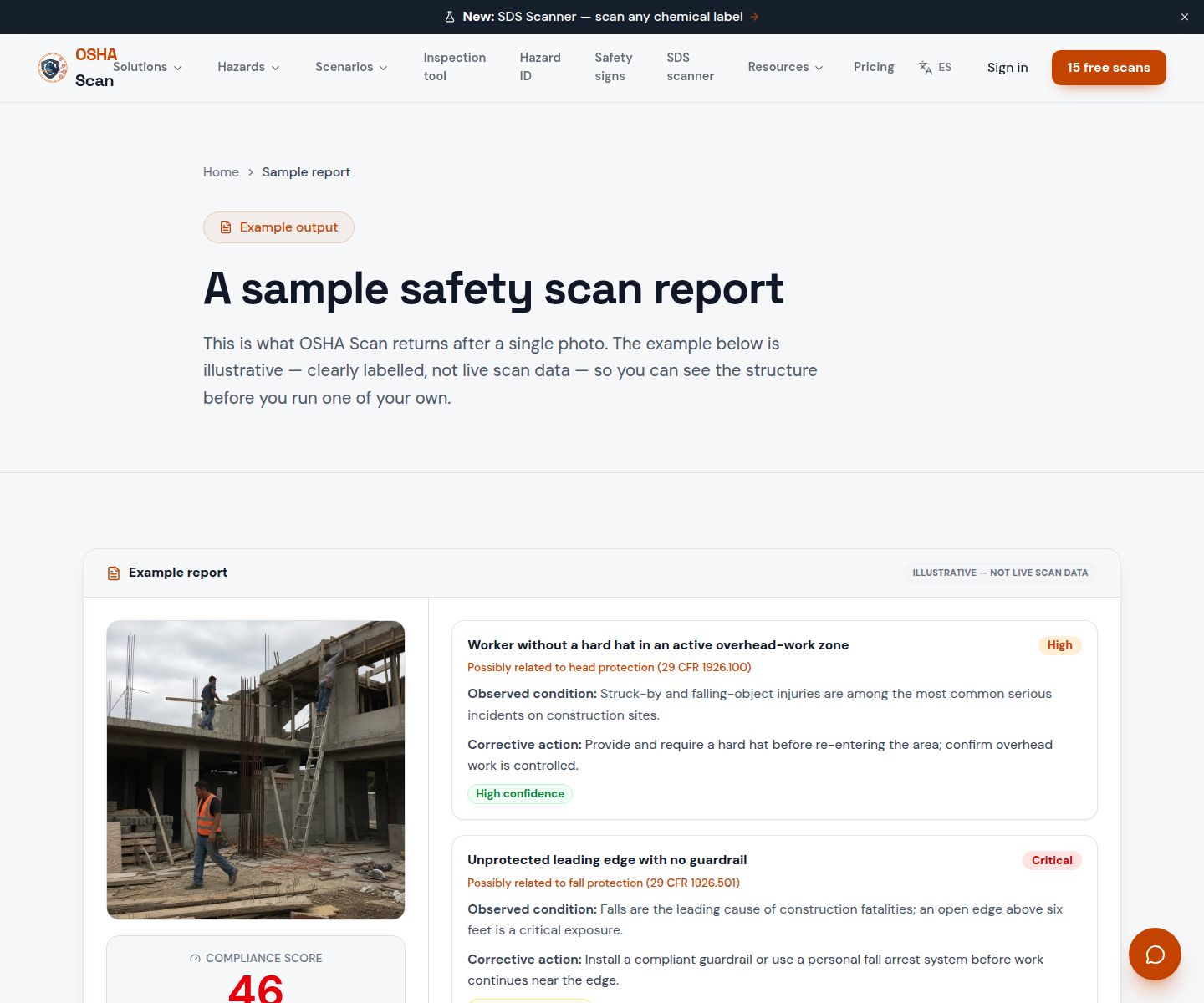
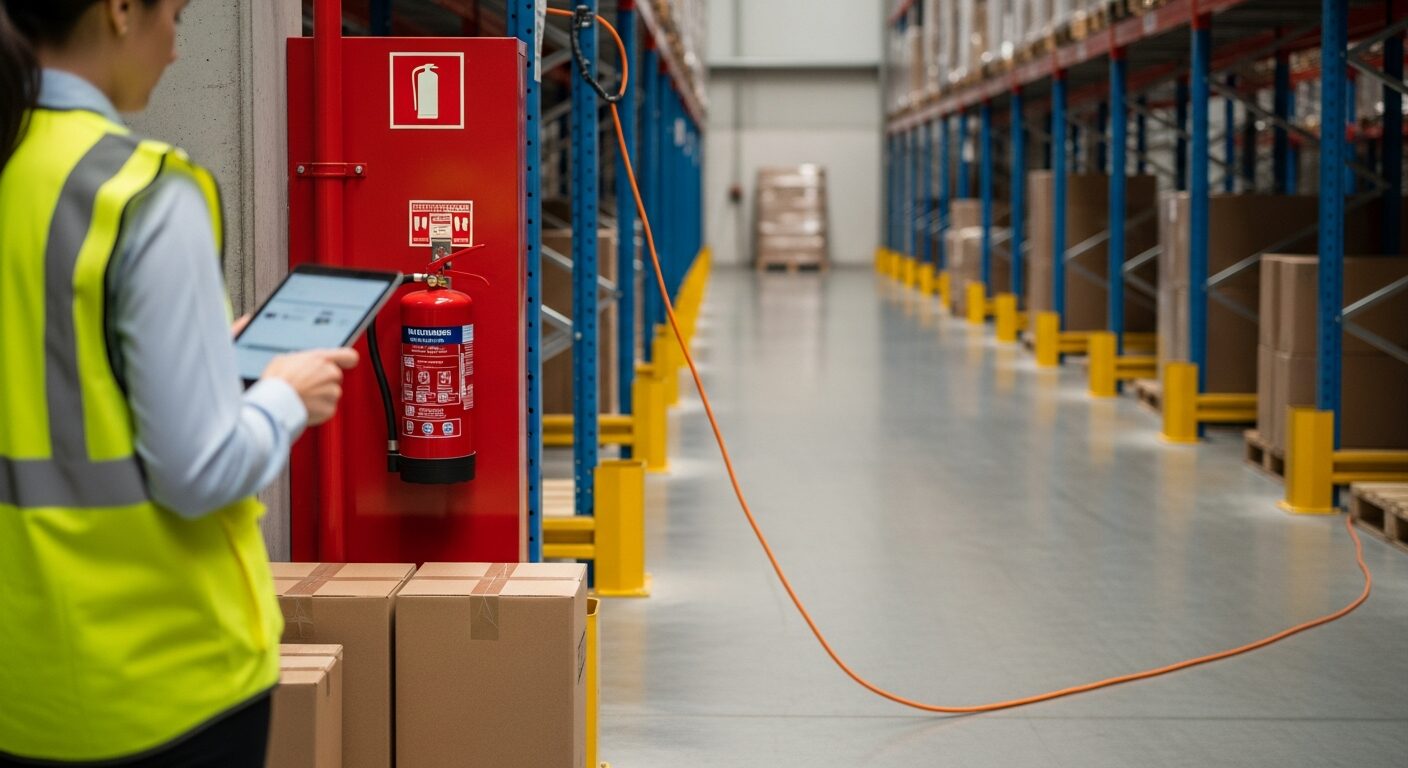
Scan a photo like the one above and this is the report you get — score, findings, OSHA references, and fixes. It is an illustrative example, clearly marked — not live scan data.
Compliance score
61
Lower means more potential hazards found
4 potential hazards found
1Emergency exit route narrowed by stored cartons
HighPossibly related to exit route requirements (29 CFR 1910.37)
Observed condition: Stored material can delay evacuation and makes the route less reliable during an emergency.
Corrective action: Remove the cartons and restore the full marked exit route; verify the route remains clear.
High confidence
2Extension cord crossing an active walkway
MediumPossibly related to walking-working surfaces (29 CFR 1910.22)
Observed condition: The crossing creates a trip hazard and exposes the cord to repeated damage.
Corrective action: Reroute the cord away from foot traffic or protect the crossing with an appropriate cord cover.
High confidence
Upload a photo like the one above and get a compliance score and hazard count in seconds. No account needed to scan — create a free account to unlock the full report.
Use the real site or facility name. If you save the scan after signup, it becomes the report name.
Three angles, one deeper scan
Only the wide shot is required — every extra angle gives the AI more places to look.
Required: Set the scene — one wide shot lets the AI sweep the whole area at once
Stand at the entry point and capture corner to corner: floors, ladders, scaffolds, and everyone at work
Drop a job-site photo or walkthrough video
Click to upload, drag & drop, or snap a photo on site. Photos scan free in about 15 seconds — no signup, no card. Video walkthroughs (up to 3 min) run on a free account.
Small habits, sharper scans
Set the scene
Start with context
Fill the frame
2–3 ft for close-ups; keep ladders, cords and workers fully in view.
Capture clearly
Make the frame usable
Light it right
Keep the sun or lights behind you — glare and shadows hide hazards.
Tap to focus
Tap the hazard on screen and hold still one second — blur can't be flagged.
Choose the useful view
Give the AI room to understand
Go landscape
Turn your phone sideways — a wider frame catches more of the scene.
Only upload photos you have permission to use, and avoid images showing personal, customer, or confidential information. Demo photos and results are held privately for up to 48 hours so you can save them to a free account; unclaimed photos are deleted automatically. Results are an AI-assisted preliminary review, not an official OSHA determination.
New: Video walkthrough scans
Record up to 3 minutes of your site — the AI extracts frames and flags every hazard with exact timestamps. Free account required.
Get the best results
Wide shot first
Stand at the entrance and photograph the entire work area so AI sees the full context
Hazard areas
Photograph elevated surfaces, equipment, electrical panels, and anywhere workers are active
Close-ups last
Move in close on anything damaged, missing, or that looks risky — the AI catches more detail
Keep the workflow accurate without overstating what the software automates.
Confirm the finding on site
Treat AI-assisted findings as drafts until a person verifies the condition.
Review the suggested correction
Adapt the recommendation to the equipment, task, and controls at the location.
Keep unfinished work pending
Pending status makes the remaining follow-up visible in the inspection checklist.
Verify before marking completed
Confirm the correction in the field before changing the checklist status.
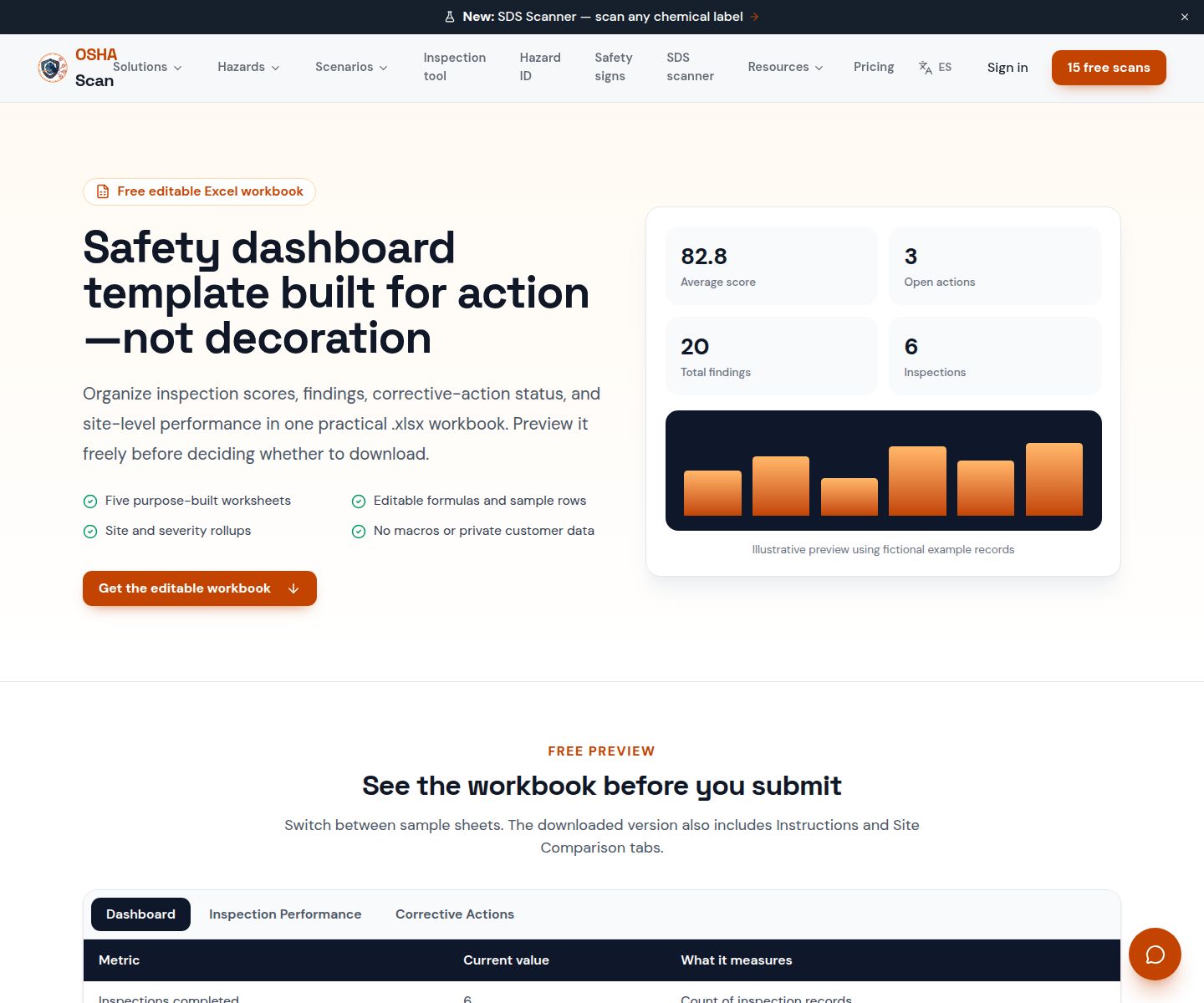
Preview an illustrative Excel layout for findings, severity, site, and action status.
View the safety dashboard templateOSHA Scan reads a single photo. That makes it fast and easy for anyone on site — but it also means it has real limits. Here's an honest look at both.
A scan is a fast first look, not the final word. Before treating this kind of area as safe, a competent person should still confirm:
Accepted inspection findings become checklist items with suggested corrections. Items can remain pending or be marked completed, and the inspection stays available in saved reports and dated trends.
No. OSHA Scan does not provide CAPA assignment, owners, deadlines, escalations, or approval workflows. Export PDF or Excel records when those controls belong in another system.
No. It documents proactive photo inspections and corrective-action checklist status; it is not an incident-management or OSHA recordkeeping system.
Saved, dated inspection scores can show changes in visible conditions over time. A person should verify the correction, and a follow-up photo is useful evidence.
Yes. Scan a workplace photo free to see the visible findings and score; an account unlocks the fuller report workflow.
Reviewed by OSHA Scan Editorial
Last updated August 29, 2026
This content is produced by the OSHA Scan Editorial team and reviewed with AI assistance. It is general safety information, not legal or compliance advice. OSHA Scan is an independent tool and is not affiliated with, endorsed by, or certified by OSHA or the U.S. Department of Labor.
Free PDF checklist
33 critical checks across 7 categories — the same visible gaps the AI scanner looks for. Sent to your inbox as a free PDF.
More ways to see what an AI OSHA scan can do for your site.
The overview hub — how the scanner works and every job, site, and hazard it covers.
View pending and completed checklist progress beside scores, trends, and recent inspections.
See how a photo becomes a saved report with suggested actions and exports.
Preview a spreadsheet structure for findings, severity, sites, and action status.
Compare focused inspection follow-up with broader EHS management suites.
See a complete labelled example of everything a scan returns.
See how a focused checklist workflow can fit your existing process.
Book a DemoStart with 5 included AI site scans plus a one-time 10-scan signup bonus — no credit card. Build JHA-ready reports and catch changing conditions sooner.
Start your free trial