
1
Set the scene
Start with context
Fill the frame
2–3 ft for close-ups; keep ladders, cords and workers fully in view.
A safety inspection report template is a structured form that captures who inspected, what area, when, and — for each finding — the hazard, a photo, a severity rating, the standard it may relate to, a corrective action with an owner and a due date, and a sign-off. A good template turns a walk into a document someone can act on and close out later. Below is a genuinely useful field-by-field structure you can copy for free. Then, if you would rather not type it out, OSHA Scan builds the same report from a photo: upload a jobsite image and the AI returns each visible hazard with severity, the OSHA standard it may relate to, and a suggested fix, exported to PDF or Excel. The first demo scan is free with no account — and it is a draft a competent person still verifies and signs.
Free · No account needed to scan · Results in seconds
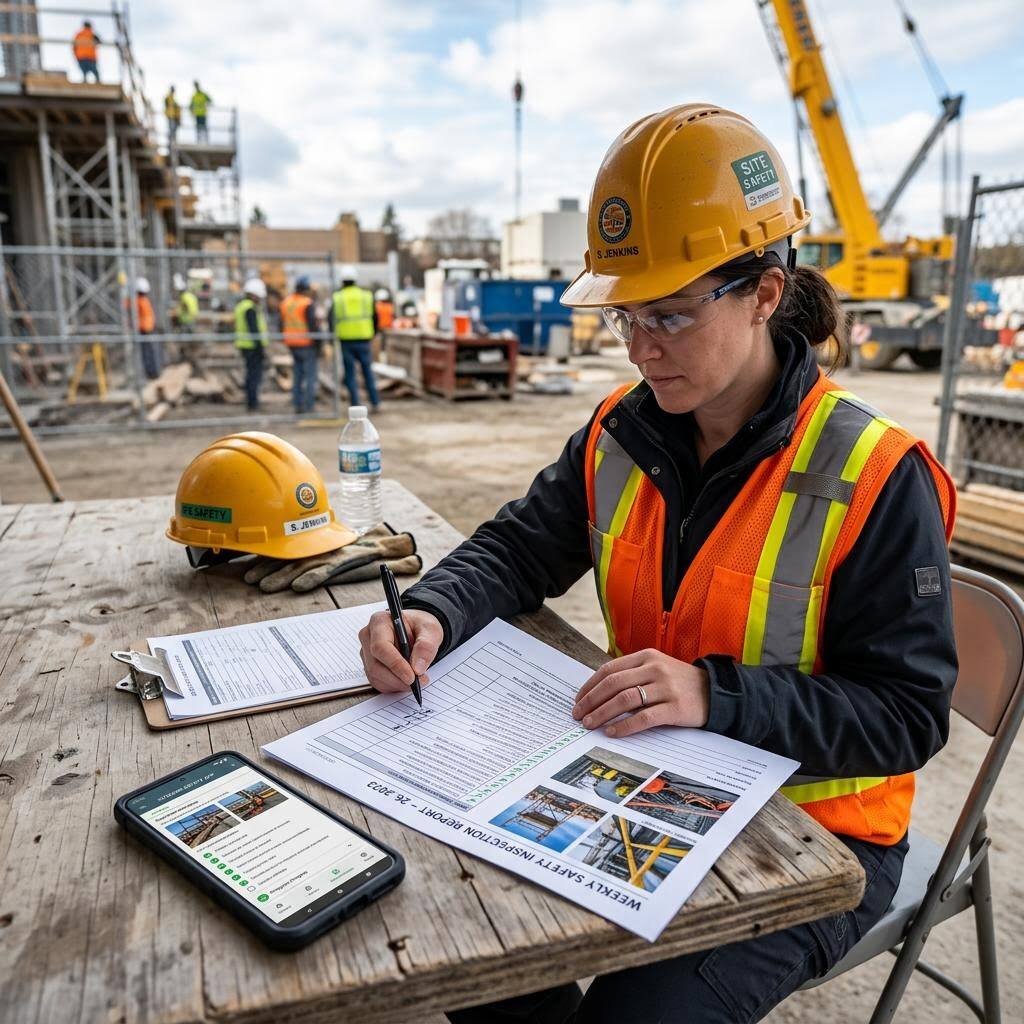
Most safety inspection reports fail in one of two ways: they are too thin to act on — 'housekeeping poor, fix ASAP' with no location, no photo, no owner — or they are so long that the three findings that actually matter drown in a checklist that was all green anyway. A useful template solves both. It forces each finding to carry the same fields: what the hazard is, where, a photo, how severe, what standard it may relate to, who fixes it, and by when. That structure is what lets a report be assigned, tracked, and closed instead of filed and forgotten.
The template below is written to be copied. Use it as a Word or Excel form, a clipboard sheet, or the skeleton for a digital tool — the fields are the same either way. The point is not the format; it is that every finding is specific enough that a person who was not on the walk can find it, understand why it matters, and confirm when it is fixed. A photo does most of that work, which is why the strongest reports attach one to every finding.
That is also exactly what OSHA Scan produces. Instead of typing the hazard, severity, standard, and suggested fix for each item, you photograph the area and the AI drafts those fields for you — then you verify, assign owners and due dates, and export to PDF or Excel in the format your program files. Generate, verify, assign, close: the report structure below, filled in from your actual site rather than from memory at the end of the day.
A complete report has two layers. The header identifies the inspection: site or area, date and time, inspector name, the type of inspection (routine walk, incident follow-up, pre-task), and an overall score or summary line. The body is a list of findings, and each finding is where the value lives. A finding needs a clear hazard description ('extension cord run across the main walkway, outer jacket cracked'), a location precise enough to find it again, a photo, a severity rating, the standard it may relate to, a recommended corrective action, an assigned owner, a target date, and a status field that moves from open to closed.
Severity is the field people most often skip and most need. Without it, every finding reads as equally urgent, which means none of them do. A simple four-level scale — Critical, High, Medium, Low — is enough, as long as it is applied consistently: Critical for a hazard that could kill or seriously injure right now, down to Low for a housekeeping item. The severity is what lets a supervisor triage a report in thirty seconds instead of reading all of it, and it is what turns a stack of reports into a trend you can actually manage.
The last field that separates a real report from a form is the corrective action loop: owner, due date, and a closeout note or a re-inspection photo. A finding without an owner is a wish. The most defensible reports pair a before photo (the hazard) with an after photo (the fix) against the same finding — that pair is the single strongest page in any file, and it is what a compliance officer, an insurer, or your own audit trail actually wants to see.
There is no single OSHA-mandated safety inspection report format, and this page will not pretend otherwise. OSHA's recommended-practices guidance for safety programs asks employers to inspect the workplace, find hazards, and track them to correction — but it does not prescribe a form. That freedom is why templates vary so much; it also means the burden is on you to build one that captures enough to prove the loop was closed. Some standards do carry their own record requirements — the PPE hazard assessment must be certified in writing under 29 CFR 1910.132(d), for example — so where a specific standard applies, your report should capture what that standard asks for.
Sign-off matters more than the file type. A report should record who performed the inspection and, for programs that require it, who reviewed or approved it — a competent person where the work calls for one. Whether the report lives in Word, Excel, a PDF, or a database is a matter of what your program files and how you run trends. OSHA Scan exports to both PDF (for the signed record) and Excel (for rolling findings up across sites), so the output drops into the process you already have rather than asking you to adopt a new one.
The report that never gets written is the one where the template loses. The routine walk at the end of a long day, the quick check of a changed setup, the second area nobody planned to inspect — those are exactly where a blank form gets skipped and where a photo-first workflow pays off. Photographing the area and letting the AI draft the findings drops the cost of documenting an inspection to about a minute, which is the difference between a report that exists and one that was going to be 'done tomorrow.'
It is a draft, and the honesty of that word matters. The AI reads what the camera captured and fills the hazard, severity, standard-reference, and suggested-fix fields for the visible conditions. It cannot judge a non-visible hazard, and it has no authority on your site. So the workflow keeps the human where OSHA expects them: verify each drafted finding at the spot, add what the photo could not show, assign owners and dates, and sign. Try that loop on a photo of your own site below — the demo scan is free and takes about a minute.
Run through these steps before crews start — each one covers a visible gap the AI can help you catch.
Record the site or area, the date and time, your name, and the inspection type. This is the information that makes the report identifiable and lets you trend results across walks later.
Walk the space with a smartphone and photograph each area and each hazard in context — the cord across the walkway, the blocked extinguisher, the housekeeping. A photo per finding removes ambiguity and enables before/after closeout.
Upload each photo. The AI returns each visible hazard with a severity rating, the OSHA standard it may relate to, and a suggested corrective action — the report body, drafted from your actual site instead of typed from memory.
Walk to each drafted finding, confirm it in context, dismiss what does not apply, and add hazards the photo could not show. Assign a named owner and a target date to every open finding so it can be tracked to closure.
Record who inspected and who reviewed, export the dated report to PDF or Excel, and distribute it. When a fix is done, attach a re-inspection photo and move the finding to closed — the before/after pair is your proof.
Upload one jobsite frame and these are the report fields the AI drafts per visible finding.
Each visible hazard written as a specific finding tied to where it is in the frame, with a pin on the photo so it can be found again.
Each finding scored Critical, High, Medium, or Low on a consistent scale, so a supervisor can triage the report at a glance.
The OSHA standard the finding may relate to, phrased as a possibility, plus a specific corrective action to start from.
A dated, scored report with owner and status fields — export to PDF for the signed record or Excel to roll findings up across sites.
Scan a photo like the one above and this is the report you get — score, findings, OSHA references, and fixes. It is an illustrative example, clearly marked — not live scan data.
Compliance score
63
Lower means more potential hazards found
6 potential hazards found
1Extension cord run across the main walkway with a cracked outer jacket
HighPossibly related to flexible cord and cable use (29 CFR 1926.405(a)(2)(ii))
Observed condition: A damaged cord across a walkway is both a trip hazard and a shock hazard — the two most common findings in a report and the two most often written too vaguely to fix. Naming the location and the jacket condition is what lets someone act on it.
Corrective action: Remove the damaged cord from service and route power overhead or along the wall clear of foot traffic; log it as a High finding with an owner and a same-day due date.
High confidence
2Fire extinguisher blocked by stacked material, mounting tag not visible
MediumPossibly related to portable fire extinguisher access (29 CFR 1926.150(c))
Observed condition: An extinguisher that cannot be reached in seconds is not a control during a fire, and a blocked one is an easy finding to miss on a fast walk — which is exactly why it belongs in the report with a photo attached.
Corrective action: Clear the access path to the extinguisher and confirm the inspection tag is current and legible; record as a Medium finding with a closeout photo when cleared.
Medium confidenceNot fully clear from the photo — verify on site.
3Housekeeping: offcuts and packaging debris accumulated in the work area
LowPossibly related to construction housekeeping (29 CFR 1926.25)
Observed condition: Debris is the lowest-severity finding here, and rating it that way is the point — a report where everything reads as urgent hides the cord that is not. Consistent severity is what makes the report triage-able.
Corrective action: Assign end-of-shift cleanup and a scrap bin at the work area; log as a Low finding to track whether it recurs across walks.
High confidence
Upload a photo like the one above and get a compliance score and hazard count in seconds. No account needed to scan — create a free account to unlock the full report.
Use the real site or facility name. If you save the scan after signup, it becomes the report name.
Three angles, one deeper scan
Only the wide shot is required — every extra angle gives the AI more places to look.
Required: Set the scene — one wide shot lets the AI sweep the whole area at once
Stand at the entry point and capture corner to corner: floors, ladders, scaffolds, and everyone at work
Drop a job-site photo or walkthrough video
Click to upload, drag & drop, or snap a photo on site. Photos scan free in about 15 seconds — no signup, no card. Video walkthroughs (up to 3 min) run on a free account.
Small habits, sharper scans
Set the scene
Start with context
Fill the frame
2–3 ft for close-ups; keep ladders, cords and workers fully in view.
Capture clearly
Make the frame usable
Light it right
Keep the sun or lights behind you — glare and shadows hide hazards.
Tap to focus
Tap the hazard on screen and hold still one second — blur can't be flagged.
Choose the useful view
Give the AI room to understand
Go landscape
Turn your phone sideways — a wider frame catches more of the scene.
Only upload photos you have permission to use, and avoid images showing personal, customer, or confidential information. Demo photos and results are held privately for up to 48 hours so you can save them to a free account; unclaimed photos are deleted automatically. Results are an AI-assisted preliminary review, not an official OSHA determination.
New: Video walkthrough scans
Record up to 3 minutes of your site — the AI extracts frames and flags every hazard with exact timestamps. Free account required.
Get the best results
Wide shot first
Stand at the entrance and photograph the entire work area so AI sees the full context
Hazard areas
Photograph elevated surfaces, equipment, electrical panels, and anywhere workers are active
Close-ups last
Move in close on anything damaged, missing, or that looks risky — the AI catches more detail
Copy this structure into Word, Excel, or a clipboard sheet. The first four fields are free — create a free account to unlock the full template and generate your first report from a photo.
Header: site/area, date, time, and inspector
Name the exact area inspected, the date and time, who performed the inspection, and the inspection type (routine walk, incident follow-up, pre-task) so the report is identifiable later.
Overall summary or score
One line or a 0–100 score that says how the area looked at a glance — this is what turns a stack of reports into a trend a manager can watch over time.
Finding: hazard description
One specific hazard per row, written so a person who was not on the walk understands it: 'extension cord across main walkway, jacket cracked,' not 'electrical issue.'
Finding: location precise enough to find it again
Zone, level, column line, or a photo pin — enough that the owner can walk straight to the hazard without hunting. Vague locations are why findings go unclosed.
OSHA Scan reads a single photo. That makes it fast and easy for anyone on site — but it also means it has real limits. Here's an honest look at both.
A scan is a fast first look, not the final word. Before treating this kind of area as safe, a competent person should still confirm:
A header (site/area, date, time, inspector, inspection type, overall summary) and a list of findings, where each finding carries a hazard description, a precise location, a photo, a severity rating, the standard it may relate to, a recommended corrective action, an owner, a due date, a status, and a sign-off. The corrective-action fields — owner, date, and closeout — are what turn a report from a form into something that gets acted on and closed.
No. OSHA's recommended-practices guidance asks employers to inspect the workplace, identify hazards, and track them to correction, but it does not prescribe a report format. Some individual standards carry their own record requirements — for example, the PPE hazard assessment must be certified in writing under 29 CFR 1910.132(d) — so where a specific standard applies, your report should capture what that standard asks for. OSHA Scan is an independent tool and is not affiliated with or endorsed by OSHA.
You do not have to, but the strongest reports do. A photo removes ambiguity about what the hazard is and where it is, and it makes a before/after closeout possible — pairing the hazard photo with the fix photo against the same finding is the most defensible page in any file. OSHA Scan is built photo-first for exactly this reason: it drafts the finding fields from the photo you upload.
Yes, as a draft. You upload a jobsite photo and the AI fills the hazard, severity, standard-reference, and suggested-fix fields for each visible finding, plus an overall area score. You then verify each finding, assign owners and due dates, add anything the camera could not see, and sign. The report exports to PDF for the signed record or Excel for rolling findings up across sites.
PDF and Excel. PDF is for the signed, filed record; Excel is for rolling findings up across multiple sites and running trends. The idea is that the report drops into the process your program already uses rather than asking you to adopt a new system.
Yes. The first demo scan is free with no account — upload a photo and see the area score and hazard count. A free account unlocks the full drafted findings with standard references and suggested fixes, saved reports, corrective-action tracking with owners and due dates, and PDF/Excel export.
Reviewed by OSHA Scan Editorial
Last updated August 29, 2026
This content is produced by the OSHA Scan Editorial team and reviewed with AI assistance. It is general safety information, not legal or compliance advice. OSHA Scan is an independent tool and is not affiliated with, endorsed by, or certified by OSHA or the U.S. Department of Labor.
Free PDF checklist
33 critical checks across 7 categories — the same visible gaps the AI scanner looks for. Sent to your inbox as a free PDF.
More ways to see what an AI OSHA scan can do for your site.
The overview hub — how the scanner works and every job, site, and hazard it covers.
What to walk for before you write the report the template captures.
How the drafted findings become PDF/Excel reports and trends.
The photo-first walk-through that feeds this report.
The broader workflow of inspecting from images on demand.
The 0–100 area score that summarizes the report header.
The hub of every hazard type and industry the scanner covers.
OSHA's recommended practices for inspecting the workplace and tracking hazards to correction — the process this report documents.
Official resource — osha.govSee a complete labelled example of everything a scan returns.
Start with 5 included AI site scans plus a one-time 10-scan signup bonus — no credit card. Build JHA-ready reports and catch changing conditions sooner.
Start your free trial